Zoom exams
Note: Zoom exams are only available for select subjects and pre-approved offshore completers. There is no flexibility for your exam format; you must sit your exams in the format they are offered. All Zoom exams are listed in Australian Eastern Standard time (AEST).
Things to do before exam day arrives
-
Your Zoom supervisor will confirm your identity during the exam by checking the photo ID you have uploaded for your student card.
Make sure you have uploaded a photo at least 5 days before your exam. If we cannot verify your identity on exam day, your exam will not be accepted by your Faculty.
It is important that your webcam is set up with optimal lighting so that exam supervisors can clearly see your face throughout a Zoom ID verified exam. The reasons for this are to:
- Verify your identity as would normally be done in a regular exam.
- Verify that you were present and abided by the examinations policy during the exam.
If you are using a:
- Laptop or PC with a built-in webcam, ensure that you are seated in front of the webcam. Check in Zoom if your face is clearly visible.
- Tablet or smartphone to enter the Zoom room, ensure that you position your device so your face is clearly in view. Check in ZoomZoom if your face is clearly visible.
Do not use your webcam to broadcast your exam workings or the LMS screen.
You will not be permitted to use an image as your Zoom background during the exam.
Here is a good example of a Zoom setup. This has optimal lighting and the face is clearly identifiable. Make sure your Zoom setup looks like this.

Here is a bad example of a Zoom setup. This has poor lighting and the face is not identifiable. Make sure your Zoom setup does not look like this.

-
- The device you choose to use to join the exam Zoom with must be updated to the latest version of Zoom.
- Make sure it is fully charged or connected to power, so you can stay in Zoom for the duration of your exam.
- The exam Zoom link will be located in your personal calendars on Canvas and my.unimelb.
-
- You will need a strong internet connection to keep connected to your exam Zoom for the entire exam, including when you are scanning and submitting your exam.
- Your connection should be able to support a video quality that allows your face to be clearly identifiable.
-
- You can download the exam paper onto a device for reading. This device must be disconnected from the internet after you have downloaded the paper, and your screen must be visible to your Zoom supervisor.
- You can also choose to print the exam paper. You may briefly leave the room to collect your printing.
-
Your Subject Coordinator will tell you what items you are permitted to use during the exam. These should be the only items you have on your exam desk.
-
Make sure you have good lighting and your webcam has a clear view of you and your desk.
Here’s some examples of good and bad webcam set up.

Acceptable - this student is viewing the exam via phone, with the device visible on their desk.

Acceptable - this student has a second device disconnected from the internet - with the screen visible.
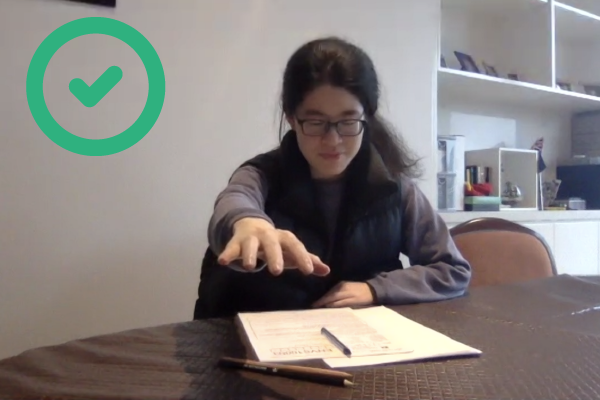
Acceptable - this student has ensured that their hand is not out of view if they reach forward.
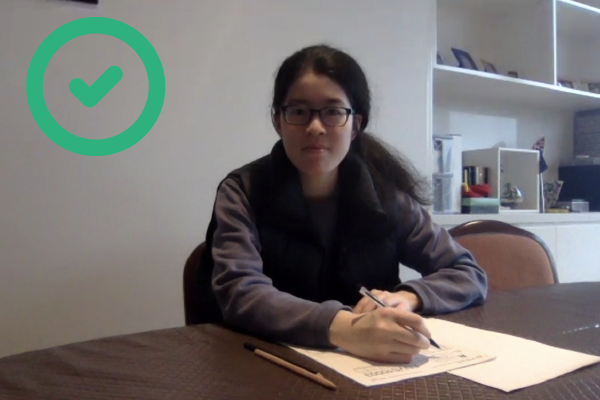
Acceptable - this student is using a printed exam, and their face is clear and visible for identificaton.

Unacceptable - the device is too close; your hands should not go out of view during the exam.
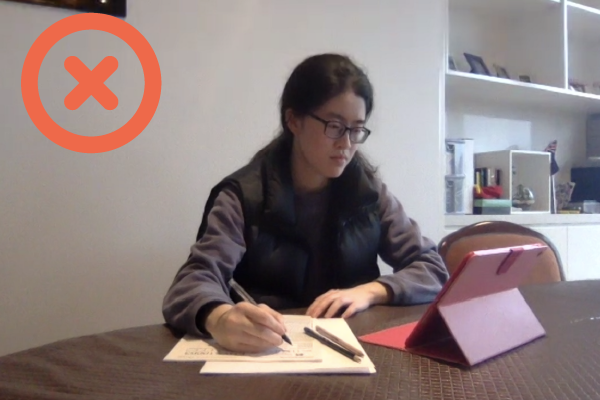
Unacceptable - the device being used to read the exam paper is not visible.
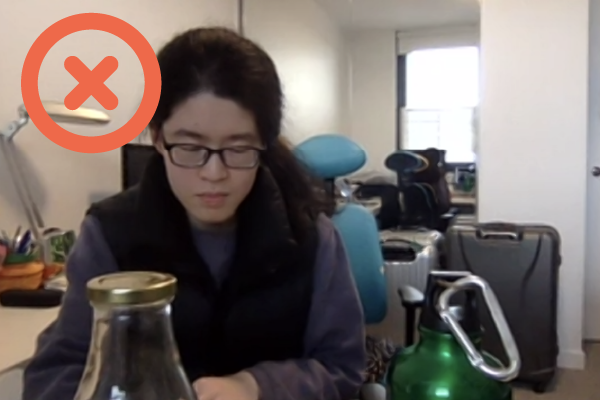
Unacceptable - objects within reach are not visible - either obscured or out of frame.
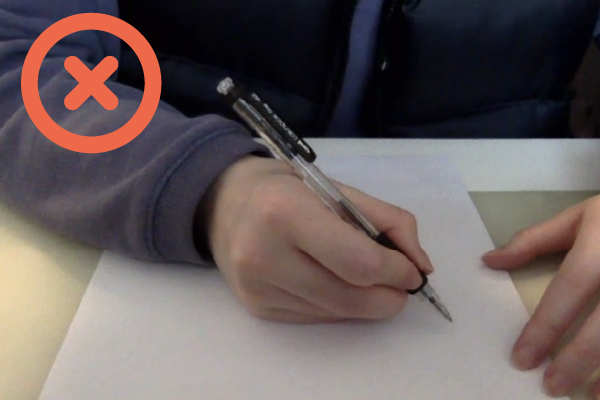
Unacceptable - objects within reach are not visible, the student can't be identified and your working out shouldn't be readable.
-
- You must remain under Zoom supervision while you are scanning and submitting your exam.
- Any exams submitted outside of zoom supervision will not be accepted, so it is strongly recommended that you do not plan to use your zoom device to scan your exam papers.
- It is also strongly recommended that you use a scanning app on your phone rather than take photographs of your exam papers.
- Students who try to submit photographs of their exam may find the file size is too large to submit.
- Download and test out your chosen scanning app before the exam period so you don't experience any trouble on exam day.
Zoom supervised exam rules
All students must follow the exam rules for zoom supervised exams.
Do
- Enter your Zoom room 15 minutes before exam time: Your Zoom supervisor will check your webcam view and provide you with important instructions before you start.
- Listen to instructions: Make sure you listen carefully when your exam supervisor is giving instructions.
- Stay in your webcam view: You must stay in webcam view for the entire exam. If you need to leave the room for any reason (for example, to use the toilet), you must first tell your supervisor and leave all exam materials in the exam room. All absences from the exam zoom are noted by zoom supervisors.
- Only use permitted materials: Your Subject Coordinator will tell you what items you are permitted to use in your exam. Use of unauthorised materials will be reported to your Faculty.
Don’t
- Talk: You must not talk to anyone else in your exam space during your online exam.
- Collude with others: Colluding with others to gain an unfair advantage is a breach of exam rules and will result in disciplinary action.
- Access the exam paper outside of Zoom supervision: You must not access the exam paper before you join the exam Zoom, or after you have left the Zoom.
- Leave your webcam view without permission: Leaving your webcam view without telling your Zoom supervisor first is considered possible academic misconduct.
- Write or make notes during reading time: You are not permitted to make any notes on your exam paper during reading time.
- Write after your exam time ends: You must immediately stop writing when told to do so. Any writing after this point will be reported to your Faculty.
- Exit Zoom before completing your exam submissions: You must make your exam submission before you exit the Zoom room. Any exam submissions made after you leave the exam Zoom will not be accepted.
Rule for Mathematics and Statistics Zoom exams only:
If you are sitting an exam from the School of Mathematics and Statistics (subjects commencing with code MAST), you cannot enter the exam zoom more than 30 minutes after the start of the reading period. If you first enter the exam zoom more than 30 minutes late, you will not be allowed to complete the exam. You may apply for Special Consideration if you arrive too late to start the exam, and can provide evidence of unexpected circumstances.
Your schedule for exam day
- 1 hour before your exam
-
- Check your exam space is ready.
- Make sure you only have permitted notes and materials on your desk
- Check you can access your zoom link via the exam timetable or your LMS calendar.
- Check your computer equipment is ready and your laptop is plugged into a power source.
- 15 minutes before your exam
-
- You must enter the Zoom room 15 minutes before your exam start.
- Connect webcam and microphone.
- Your identity will be verified using a copy of your student card ID photo.
- You may be asked to adjust your webcam view/lighting if it does not show you or your entire workspace.
- Your Zoom supervisor will brief you on your exam requirements.
- Exam start time
-
- You will have either 15 or 30 minutes reading time.
- You can print the paper or download to your device for reading.
- You may briefly leave the webcam view to collect your printing.
- Carefully read exam instructions on the cover sheet.
- While reading you may not write, highlight, annotate or make any marks on the paper.
- For Maths and Statistics exams, you cannot arrive more than 30 minutes after the start of the reading period, or you may not be allowed to complete the exam.
- Exam writing start time
-
- You may start your exam.
- Contact your supervisor by raising your hand and communicate with them via private Zoom chat.
- Ask permission before you leave your Zoom view for any reason during the exam.
- Exam answers can be written on a printed template exam (available prior to the exam), a printed copy of the exam paper (which you can print at the start of your exam), or blank paper.
- Exam end time
-
- Stop writing immediately once the examend is announced.
- You will have up to 30 minutes to scan and upload your exam papers using a scanning app.
- You can make multiple submissions, however all submissions must be made under Zoom supervision.
- Contact your Zoom supervisor if you are having trouble submitting your exam paper.
If using Gradescope, you will receive an email confirmation. - Once submission is complete, notify your supervisor who must give you permission to leave the exam Zoom.
- Exam submissions made outside of Zoom supervision will not be accepted.
- Please Note: Zoom exams will be recorded for supervision purposes
Troubleshooting
- Your Zoom supervisor will assist you in confirming your webcam setup is correct.
- Refer to the LMS support page for Zoom, LMS and Gradescope assignment guides assignment or
- Test your internet connection and Zoom settings.
- See the support guide for advice on scanning your papers and creating a PDF to submit.