
- If you cannot see your semester 1 enrolled subjects, make sure you are accessing 2027 MyTimetable, not 2026 MyTimetable.
- If you have recently accepted your course offer, access to MyTimetable may take up to 24 hours to become available. If you cannot log in after 24 hours, please contact Student IT Support.
- If you've recently re-enrolled, it may take up to 24 hours for you to access your enrolled subjects. In the meantime, you can continue planning your unenrolled subjects in the Plan tab.
- Planned timetable is not same as allocated timetable. Make sure to check the Timetable tab to access your allocated timetable.
How to use MyTimetable

Plan your class timetable
Know key dates and plan your class timetable.
Understand the steps to create your class timetable.
Know the key dates for planning and creating your class timetable.
You can plan your class timetable before the preference entry period.

Enter class timetable preferences
Discover how to create and submit your class timetable preferences.
Find out how to select your class timetable preferences.
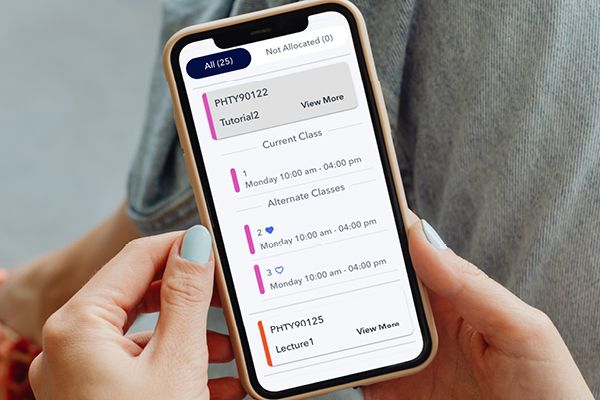
Review your class timetable
Learn how to review your class timetable and how to make changes.
Find out about getting your timetable and viewing your class details.
Review your timetable and make changes before classes start.
Learn how to create your class timetable during the review period.
Find out when and why you would need to submit a TAF.

Start classes
Get ready with this helpful guide to find your classroom.
Here are some great tools to help you find your classroom.
Need more help?
Please contact us using one of the channels below.
Ask Stop 1 AI Assistant (recommended)Submit an enquiry Call us